 Continue with Google
 Introduction
Generating professional invoices for Amazon customers can be a time-consuming manual task. SellerSheet automates this entire process, allowing you to create bulk VAT invoices or receipts directly from your synced order data in Google Sheets.
YouTube Video Coming Soon
A detailed video tutorial is being prepared for this guide.
Step 1: Configure Store Information
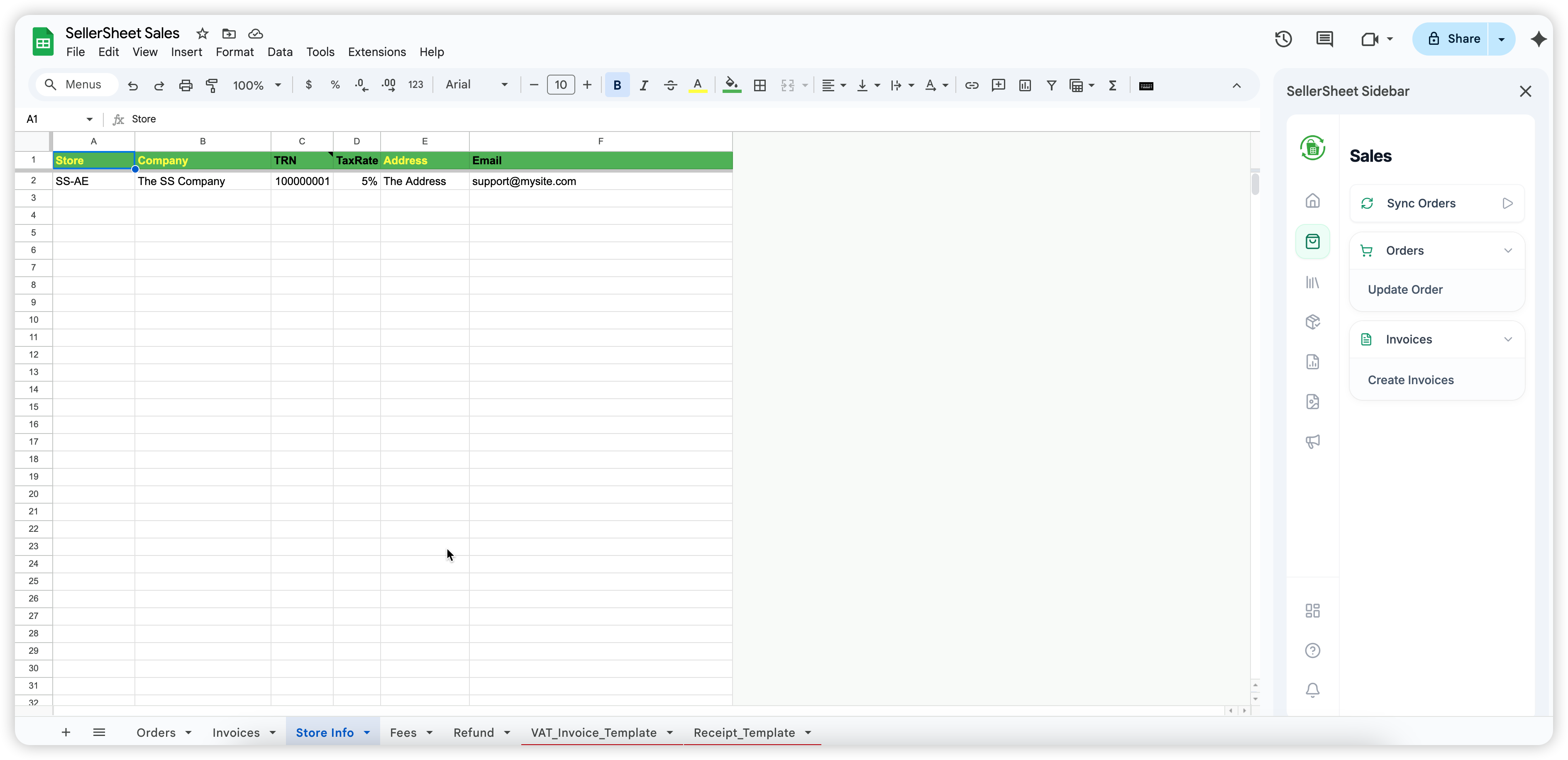
Before generating invoices, you must set up your business branding and tax details in the Store Info sheet. This data is used to populate your invoice headers correctly.
| Column | Type | Description | Sample |
|---|---|---|---|
| StoreName | Required | Primary identifier. Must match authorized store. | SS-AE |
| Company | Required | Legal entity name for invoice header. | The Company LLC |
| TRN / TaxRate | Optional | If empty, generates Receipt instead of VAT Inv. | 123... / 5% |
Invoice Type Logic
SellerSheet uses the presence of TRN and TaxRate to determine the invoice type:
- RECEIPT (REC): Created if TRN or TaxRate is missing.
- VAT INVOICE (INV): Created only if both TRN and TaxRate are provided.
Step 2: Generate Bulk Invoices
Once your store information is configured, you can generate invoices by providing order and customer details in the Invoices sheet.
Invoice Prerequisites
- Store Match: The store listed in the Store column must exist in the Store Info sheet.
- Order Match: The Amazon Order ID must already exist in your Orders sheet (synced via the Sales tab).
Filling Customer Data
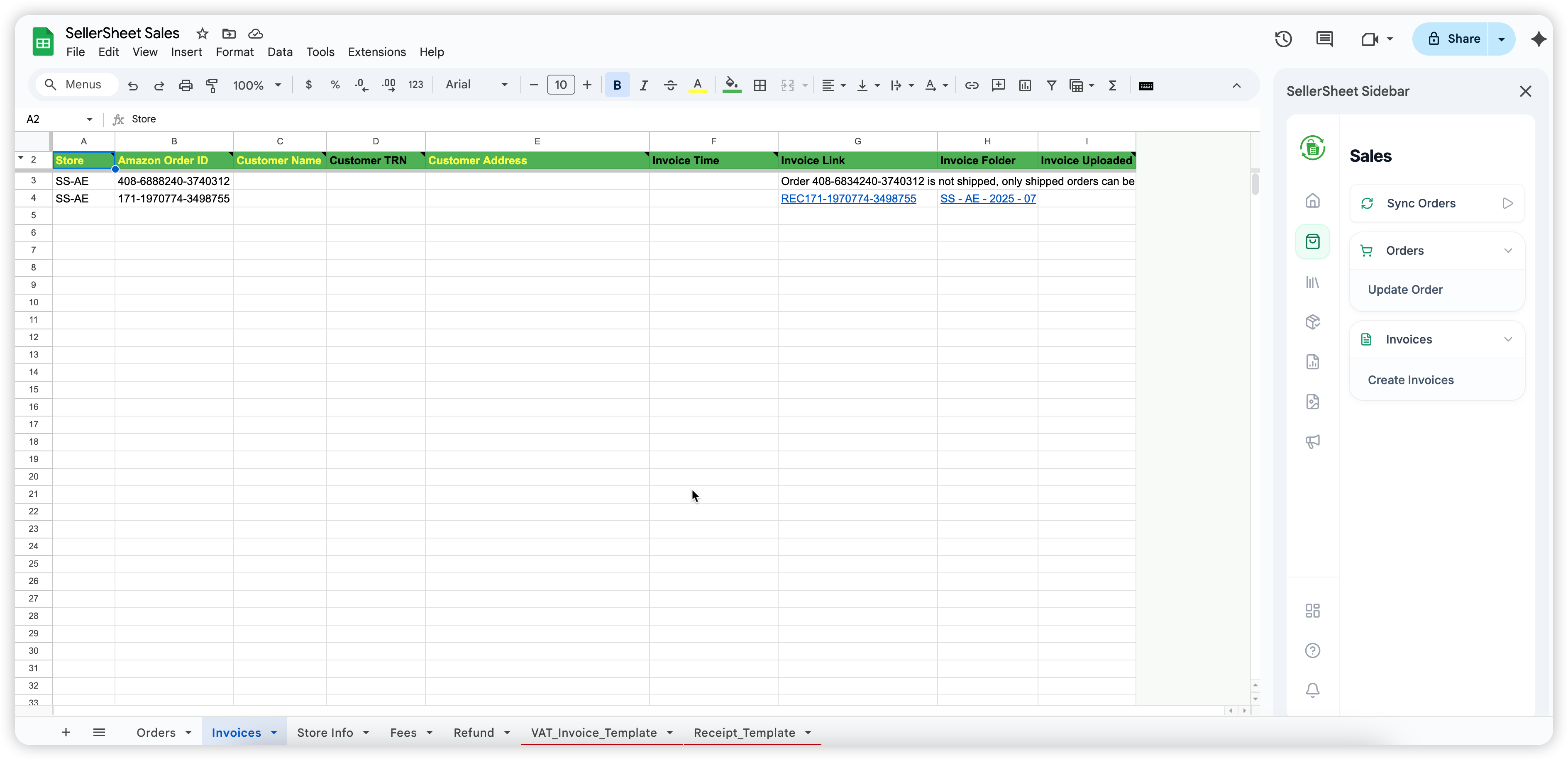
Fill in the following columns for each order you wish to invoice:
- Customer Name: The name to appear on the invoice.
- Customer TRN: Required for VAT Invoices only.
- Customer Address: Ship-to or billing address.
- Invoice Time: Optional. If left blank, the current system time will be used.
Triggering Creation
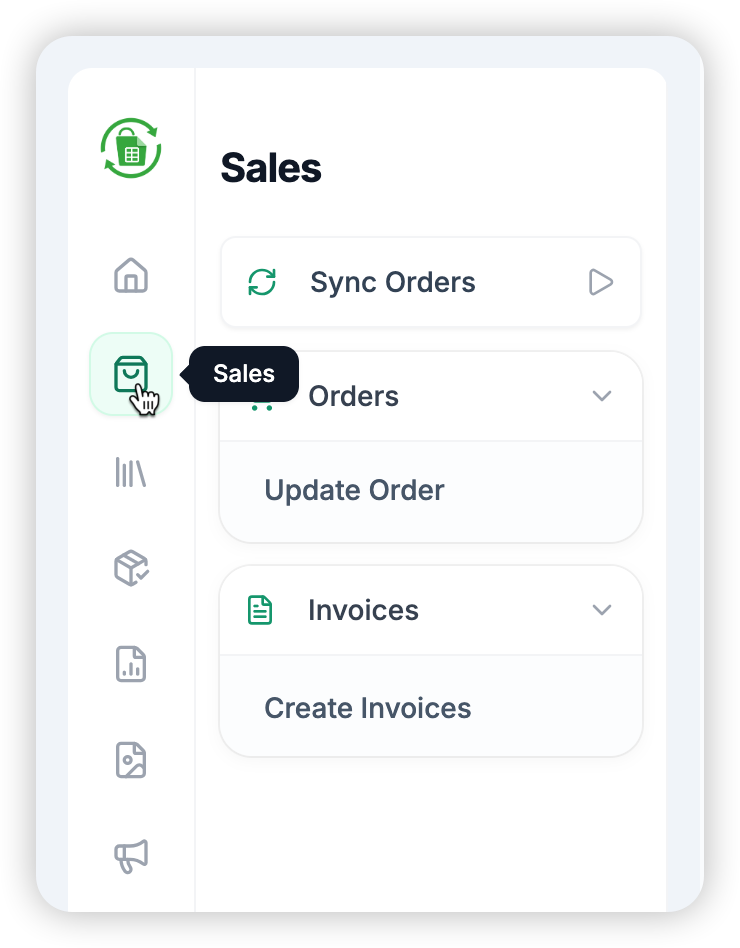
- Go to the Sales tab in the SellerSheet sidebar.
- Click on the Create Invoices button.
SellerSheet will iterate through the active sheet and generate PDF invoices for every valid row.
Automation Results
- Auto-Populated Links: Once created, the Invoice Link and Invoice Folder columns will fill automatically.
- Folder Logic: Invoices are stored in a nested structure:
SellerSheet/{Store}/{Marketplace}/{Year}/{Month}(e.g.,SellerSheet/SS/AE/2025/07).
Technical Limitations & Scopes
- Runtime Limits: Google Sheet sidebars have a standard execution limit. If you have hundreds of invoices and the process stops, simply click Create Invoices again to resume.
- Active Sheet Scope: The tool only processes the sheet you are currently viewing.
- Skipping Logic: If an Invoice Link already exists for a row, SellerSheet will skip it to prevent duplication.
Pro Tip: Resuming Tasks
If the invoicing process times out due to Google's limits, don't worry! Your progress is saved. Just click the button again, and it will pick up exactly where it left off by skipping rows that already have links.
Conclusion
With SellerSheet's bulk invoicing feature, you can maintain professional communication with your customers while ensuring your tax compliance is effortless and automated.