 Continue with Google
 Introduction
Analyzing Amazon PPC performance means logging into Seller Central, navigating to Campaign Manager, selecting date ranges, choosing report types, waiting for downloads, and then copy-pasting data into spreadsheets. For multiple report types or multiple stores, this becomes a daily time sink.
SellerSheet's Ads Reports feature lets you request and download Amazon Sponsored Products advertising reports directly into Google Sheets. Fill in your store, report type, and date range — then click two buttons in the sidebar to queue the report and retrieve the data.
This guide covers the full workflow: setting up the Ads Reports sheet, choosing from 10 report types (campaigns, keywords, targeting, search terms, and more), and downloading the results into dedicated spreadsheets for analysis.
Set Up Sheet
Store, report type, dates
Create Reports
Queue on Amazon's servers
Get Reports
Download completed data
Analyze
Full metrics in Sheets
Prerequisites
- Store Authorization: Authorize your Amazon store on the SellerSheet Dashboard.
- Ads API Authorization: Authorize Amazon Advertising API access for your store. This is a separate authorization from the SP-API store authorization.
- Sidebar Installed: Install the SellerSheet sidebar add-on. See the Onboarding Guide.
- Active PPC Campaigns: You need active or historical Sponsored Products campaigns to generate reports.
Setting Up the Ads Reports Sheet
The Problem
In Seller Central, downloading PPC reports means navigating Campaign Manager, selecting report types one at a time, waiting for each to generate, then downloading CSVs and importing them into your spreadsheet. For multiple report types across multiple stores, this takes a significant amount of time every week.
The Ads Reports sheet is where you define what reports you want. Each row represents one report request. You fill in the store, report type, and date range — then the sidebar handles the rest.
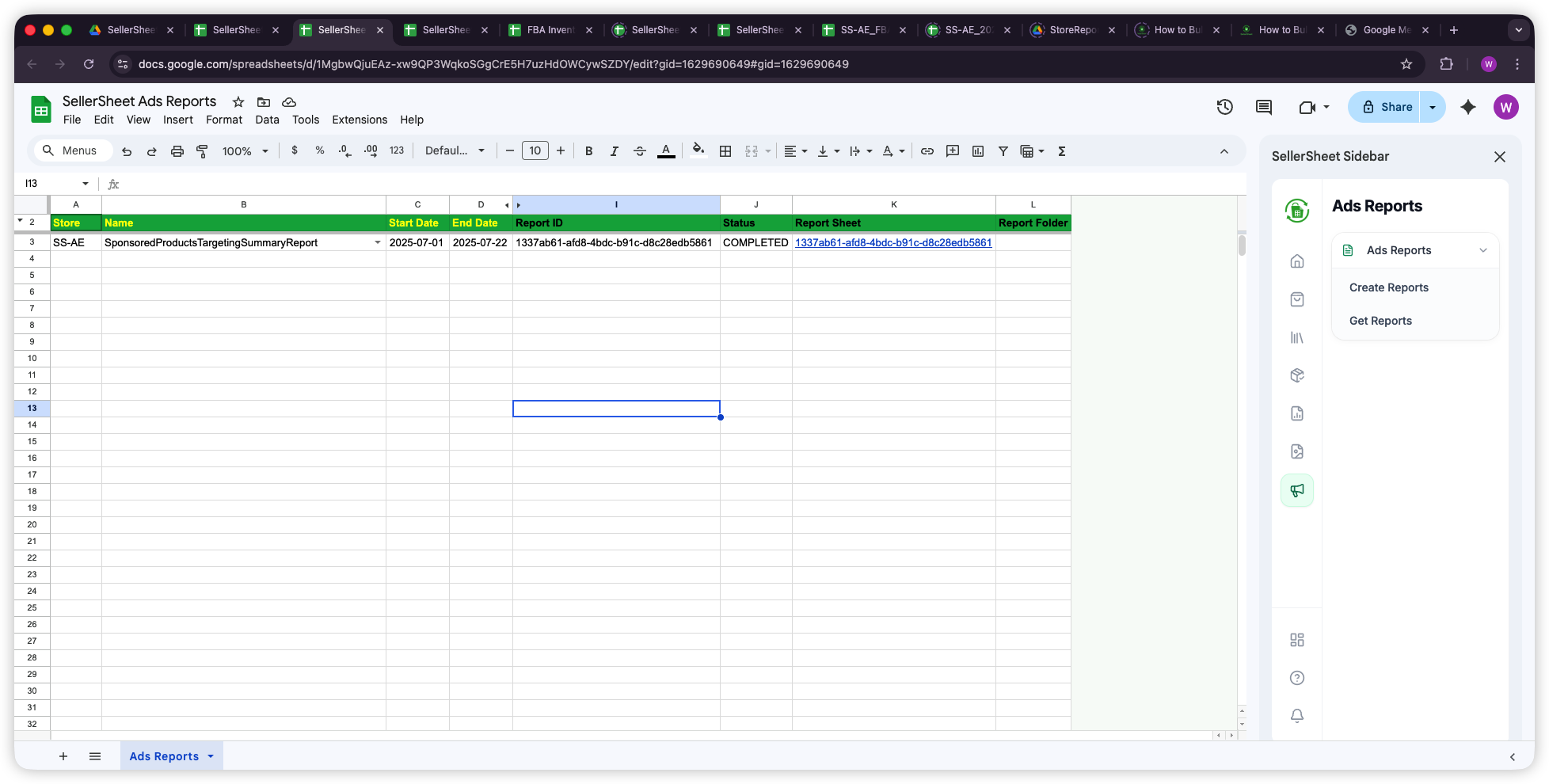
Ads Reports Columns
- Store: Your store identifier with country code (e.g.,
SS-AE). - Name: The report type name. Must match one of the supported report types.
- Start Date: Beginning of the reporting period.
- End Date: End of the reporting period.
- Report ID: (Auto-filled) Amazon's unique identifier for the queued report.
- Status: (Auto-filled) Current status —
PENDINGorCOMPLETED. - Report Sheet: (Auto-filled) Hyperlink to the generated spreadsheet with full report data.
- Report Folder: (Auto-filled) Google Drive folder where the report spreadsheet is saved.
To set up a report request, fill in a row with:
- Store — Select your store identifier (e.g.,
SS-AE). - Name — Enter the exact report type name (see Report Types below).
- Start Date — The first day of data you want.
- End Date — The last day of data you want.
Pro Tip: Batch Multiple Reports
Add multiple rows for different report types and date ranges. Create Reports processes all rows at once, so you can queue a campaign summary, keyword report, and search term report in a single click.
Step 1: Create Reports
After filling in your report rows, open the SellerSheet sidebar and navigate to the Ads Reports tab (megaphone icon). Click Create Reports.
SellerSheet sends each report request to Amazon's Advertising API. For each row:
- Validates that Store, Name, Start Date, and End Date are filled in.
- Constructs the full report configuration (columns, filters, groupBy, timeUnit) based on the report type name.
- Sends the request to Amazon via the SellerSheet backend.
- Writes the returned Report ID and Status back to the sheet.
Most reports start with status PENDING while Amazon generates the data. Some small reports may complete immediately and show COMPLETED.
Important: Report Name Must Be Exact
The Name column must exactly match one of the supported report type names (e.g., SponsoredProductsTargetingSummaryReport). Misspellings or unsupported names will fail. See the full list below.
Step 2: Get Reports
Once your reports have a Report ID, click Get Reports in the sidebar. SellerSheet checks the status of each pending report:
- If COMPLETED: Downloads the full report data, creates a new Google Spreadsheet in your Drive, populates it with headers and all data rows, and writes a clickable hyperlink to the Report Sheet column.
- If still PENDING: Updates the status. Wait a few minutes and click Get Reports again.
The generated spreadsheet contains every metric Amazon provides for the report type — impressions, clicks, spend, sales, ACOS, ROAS, and more, depending on the report type.
Pro Tip: Report Generation Time
Amazon typically generates advertising reports within 1–5 minutes. If a report is still PENDING, wait a few minutes and click Get Reports again. Rows that already have a Report Sheet link are automatically skipped.
Available Report Types
SellerSheet supports 10 Sponsored Products report types. Each covers different dimensions and time granularities. Use the exact Name in the table below when filling in your Ads Reports sheet.
| Report Name | Time Unit | What It Covers |
|---|---|---|
SponsoredProductsCampaignsSummaryReport | Summary | Campaign-level performance summary |
SponsoredProductsCampaignsWithPlacementSummaryReport | Summary | Campaign performance broken down by ad placement |
SponsoredProductsCampaignsWithAdGroupDailyReport | Daily | Campaign and ad group level daily metrics |
SponsoredProductsKeywordsSummaryReport | Summary | Keyword-level performance summary |
SponsoredProductsKeywordsAndTargetingSummaryReport | Summary | Combined keywords and targeting performance |
SponsoredProductsTargetingSummaryReport | Summary | Targeting-level performance (product targeting, auto targeting) |
SponsoredProductsSearchTermSummaryReport | Summary | Search term performance and customer query analysis |
SponsoredProductsAdvertisedProductDailyReport | Daily | Daily performance for each advertised product (ASIN/SKU) |
SponsoredProductsPurchasedProductDailyReport | Daily | Products actually purchased through ad clicks (attribution) |
SponsoredProductsGrossAndInvalidTrafficDailyReport | Daily | Gross vs invalid traffic tracking and click quality |
Summary vs Daily Reports
- Summary: Aggregated data for the entire date range. One row per campaign/keyword/targeting. Best for period-over-period comparisons.
- Daily: One row per day per entity. Best for trend analysis and identifying daily performance fluctuations.
Report Metrics
Each report spreadsheet contains 30–60 columns depending on the report type. Key metrics include:
| Category | Metrics |
|---|---|
| Traffic | impressions, clicks, clickThroughRate, costPerClick |
| Spend | cost, spend |
| Conversions | purchases (1d/7d/14d/30d attribution windows), unitsSoldClicks |
| Revenue | sales (1d/7d/14d/30d attribution windows) |
| Efficiency | acosClicks (7d/14d), roasClicks (7d/14d) |
| Dimensions | campaignName, adGroupName, keyword, targeting, advertisedAsin, purchasedAsin, date |
Example Workflow
Here's a typical workflow for pulling weekly PPC reports:
- Add report rows to the Ads Reports sheet:
Store Name Start Date End Date SS-AE SponsoredProductsCampaignsSummaryReport 2025-07-01 2025-07-07 SS-AE SponsoredProductsSearchTermSummaryReport 2025-07-01 2025-07-07 SS-AE SponsoredProductsTargetingSummaryReport 2025-07-01 2025-07-22 - Click Create Reports in the sidebar — all 3 reports are queued simultaneously. Report IDs and statuses appear in the sheet.
- Wait 1–5 minutes for Amazon to generate the reports.
- Click Get Reports — completed reports get a clickable link in the Report Sheet column. Click any link to open the full data in a new spreadsheet.
Quick Reference
Use this table to quickly find what each action does:
| What You Need | Action | Result |
|---|---|---|
| Queue reports on Amazon | Create Reports | Report ID + Status filled in |
| Download completed data | Get Reports | New spreadsheet with full report data |
| Campaign-level overview | Use CampaignsSummaryReport | Spend, sales, ACOS per campaign |
| Keyword optimization | Use KeywordsSummaryReport | Performance per keyword and match type |
| Discover new keywords | Use SearchTermSummaryReport | Customer search queries that triggered ads |
| Product-level ASIN analysis | Use AdvertisedProductDailyReport | Daily metrics per advertised ASIN/SKU |
| Attribution analysis | Use PurchasedProductDailyReport | Which products customers actually purchased |
Tips for PPC Analysis
- Weekly Routine: Set up the same report rows each week with updated dates. Create Reports on Monday morning, Get Reports a few minutes later, and you have last week's data ready to analyze.
- Multiple Stores: Add rows for different stores in the same sheet. Each row targets the store specified in the Store column, so you can pull reports for all your marketplaces at once.
- Search Term Mining: Use the
SearchTermSummaryReportto find high-converting customer search queries, then add them as exact match keywords to your campaigns. - ACOS Tracking: The
CampaignsSummaryReportgives you ACOS (acosClicks7d/14d) and ROAS (roasClicks7d/14d) per campaign — perfect for identifying campaigns that need bid adjustments. - Placement Analysis: Use
CampaignsWithPlacementSummaryReportto see how your ads perform in Top of Search vs Rest of Search vs Product Pages. Adjust placement modifiers based on this data.