 Continue with Google
Introduction
Checking if you're eligible to sell an ASIN on Amazon can be a tedious, one-by-one process in Seller Central. If you're sourcing hundreds of items, manual checks are a productivity killer.
The Problem
Switching between tabs, copy-pasting ASINs, and dealing with "Apply to Sell" buttons manually takes minutes per item. Scale that to a sourcing list of 500 ASINs, and you've lost hours of work.
With SellerSheet, you can automate this entire workflow. By leveraging the Amazon SP-API, we bring listing restrictions and selling eligibility status directly into your Google Sheets.
Prerequisites
- SellerSheet Account: Ensure you have an active SellerSheet Account.
- Authorized Store: Your Amazon store must be authorized in the SellerSheet Dashboard.
- Sidebar Installed: Open the sidebar from Extensions → SellerSheet → Open Sidebar.
Navigating to Listings Restrictions
All eligibility checks happen within the Catalogs module. To get started:
- Expand the Catalogs tab in the sidebar.
- Under the My Resources section, locate and open your SellerSheet Catalog spreadsheet.
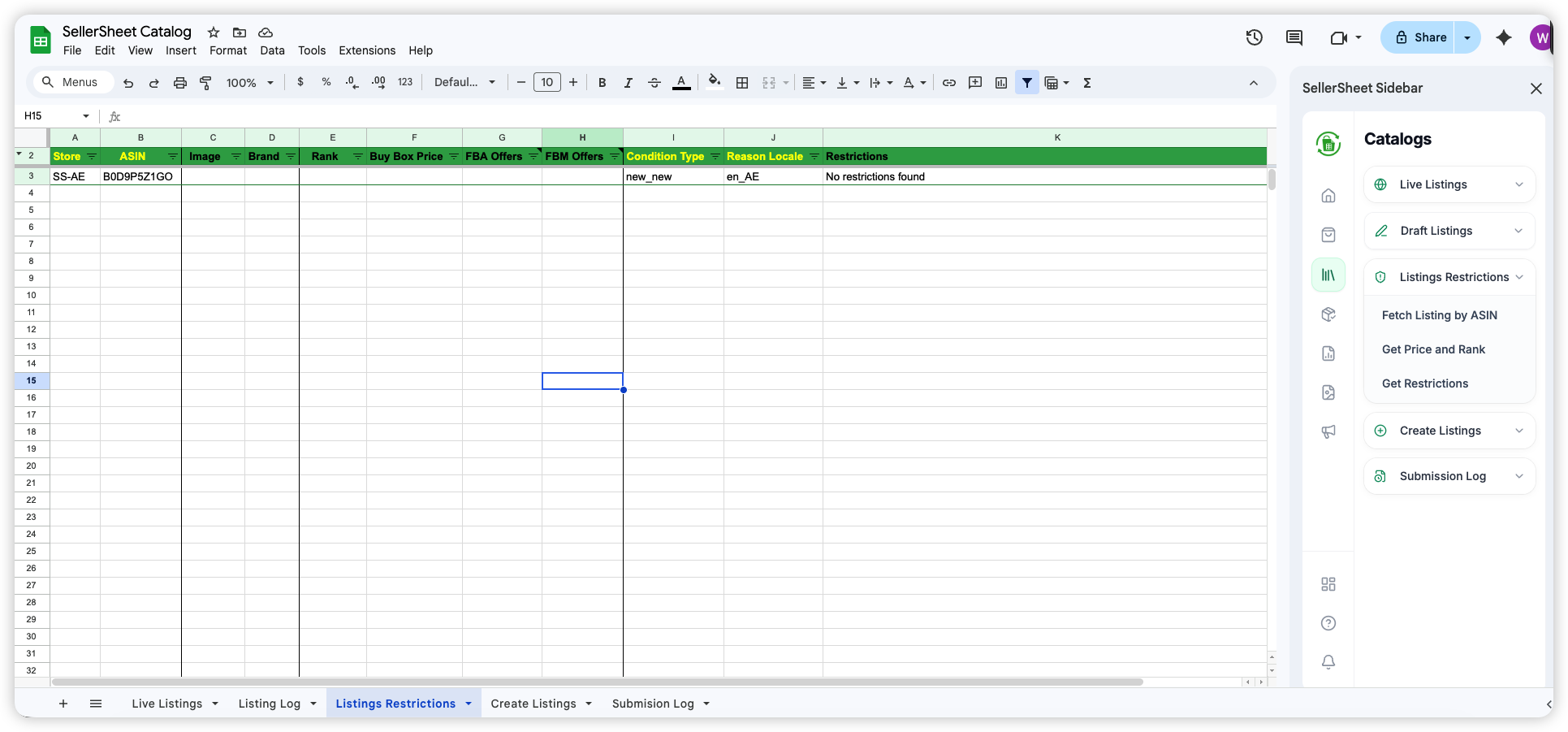
- Switch to the Listings Restrictions sheet tab.
The Expected Sheet Structure
The Listings Restrictions sheet uses specific headers in Row 2 to identify data:
Step 1: Input ASINs and Store Names
Paste your list of ASINs into the ASIN column and select the corresponding Store from the dropdown (or paste the store name exactly, e.g., MyStore-US).
Step 2: Fetch Product Data (Optional)
Before checking restrictions, you might want to see what the products are. Use these functions in the sidebar:
Fetch Listing by ASIN
Automatically pulls the product image, brand name, and title.
Get Price and Rank
Retrieves the current sales rank, Buy Box price, and offer counts.
Step 3: Checking Selling Restrictions in Bulk
To check if you can sell these items:
- Fill in the Condition Type (e.g.,
New). - Select the Reason Locale (e.g.,
en_US). - Click the Get Restrictions button in the sidebar.
Pro Tip: Actionable Lists
Create a "Master Sourcing Sheet" and use filter views to show only rows where Restrictions equals "Not restricted". This gives you an instant, actionable list of products you can list immediately.
Summary Table
| Feature | What it tells you |
|---|---|
| Fetch Listing | Is this the right product? (Image/Brand/Title) |
| Price & Rank | Is it worth selling? (Rank/Buy Box/Competition) |
| Get Restrictions | AM I ALLOWED TO SELL IT? (Eligibility Status) |
Conclusion
Automating your ASIN eligibility checks is one of the easiest ways to reclaim time in your Amazon business. Stop the manual grind and let SellerSheet handle the heavy lifting directly in your Google Sheets.
Ready to scale? Pick a plan and start bulk checking ASINs today.